Facebook Page Restricted and How to Lift Every Limit
Facebook Page Restricted and How to Lift Every Limit
Facebook page restricted? Identify which restriction type you have and follow the exact recovery steps. Covers content, monetization, and ad limits.
- 1How to Tell Which Facebook Page Restriction You Have
- 2What Causes Facebook to Restrict a Page
- 3How to Appeal a Facebook Page Restriction Step by Step
- Content Distribution Restriction Appeal
- Advertising Restriction Appeal
- Monetization Suspension Appeal
- 4What to Do When a Facebook Page Appeal Gets No Response
- 5How to Recover a Restricted Facebook Page in 2 to 4 Weeks
- Week 1 (Days 1 to 7)
- Week 2 (Days 8 to 14)
- Week 3 to 4 (Days 15 to 28)
- 6How to Prevent Future Facebook Page Restrictions
- 7Frequently Asked Questions
- How long does a Facebook page restriction last?
- Can I create a new Facebook page if mine is restricted?
- Where do I check if my Facebook page is restricted?
- What is the difference between Facebook jail and a shadowban?
- Does paying for Facebook ads help with page restrictions?
- How many strikes before Facebook permanently bans a page?
TL;DR: A Facebook page restricted for policy violations can be recovered through the Account Quality dashboard, but the fix depends entirely on which restriction type you have. Content distribution restrictions, monetization suspensions, and advertising bans each follow different appeal paths with different timelines. Most creators make the situation worse by submitting the wrong type of appeal or creating new accounts, both of which escalate the penalty. Identify your restriction category first, then follow the matching recovery path below.
Your Facebook page got restricted and the notification told you almost nothing about why. A vague reference to Community Standards, maybe a mention of “reduced distribution,” and a link to a support page that loops you back to where you started.
A Facebook page restricted for content violations is not the same situation as one restricted from running ads or one that lost monetization eligibility. The recovery path, the appeal process, and the realistic timeline are completely different depending on which category Meta placed you in.
What I want to walk through here is each restriction type, the exact steps to identify which one you have, the appeal process for each, and how to run a structured 2 to 4 week recovery that gets your page back to full functionality. You will know which restriction applies to you, what to submit, and what mistakes to avoid.
If your issue is more about vanishing reach than an outright restriction, the Facebook reach throttling guide covers the separate problem of algorithmic suppression without a formal policy violation.
How to Tell Which Facebook Page Restriction You Have
Facebook enforces four distinct restriction types on pages, and each one requires a completely different recovery method.
Using the wrong appeal for your restriction type wastes time and can trigger additional flags.
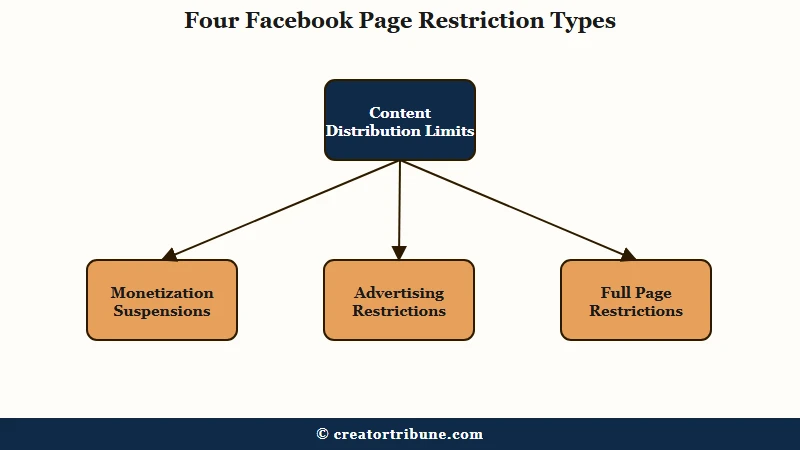
In my experience, this is where most creators go wrong. They search “Facebook page restricted” and follow generic advice that applies to only one of the four categories. Here is what each restriction looks like and how to identify yours.
| Restriction Type | What You See | Where to Check | Recovery Difficulty |
|---|---|---|---|
| Content distribution limit | Posts reach fewer people, no error when posting | Page Quality tab in Meta Business Suite | Moderate |
| Monetization suspension | In-stream ads or Stars disabled, page still posts normally | Monetization settings in Creator Studio | Moderate to difficult |
| Advertising restriction | Cannot create or run ads, existing campaigns paused | Account Quality in Ads Manager | Difficult |
| Full page restriction | Cannot post, comment, or interact from the page | Notification banner on page, email from Meta | Very difficult |
Content distribution restrictions are the most common and the least visible. Your page can still post, but Meta limits how many people see that content. The only way to confirm this is checking the Page Quality tab inside Meta Business Suite, where any active violations will appear with a timestamp and category.
Monetization suspensions affect in-stream ads, Stars, and Subscriptions independently of your ability to post. A page can have full posting access but zero monetization eligibility. In my experience, this is the restriction most creators miss because their content still appears to function normally.
Advertising restrictions lock you out of Ads Manager entirely. Existing campaigns get paused, and new campaign creation is blocked. This restriction shows up in Account Quality under your Ads Manager settings.
Full page restrictions are the most severe. The page cannot post, comment, or interact in any way. These typically come with an email notification from Meta and a visible banner at the top of the page when you log in.
What I would recommend as your first step is opening Meta Business Suite, navigating to Page Quality, and checking whether any violations are listed there. That tab is the single most reliable diagnostic for understanding what Meta has flagged.
What Causes Facebook to Restrict a Page
Facebook restricts pages through a combination of automated AI detection and user reports, and a single strike carries no penalties while ten or more strikes within a rolling window can trigger a 30-day suspension.
Most restrictions start with automated flags, not human review.
What surprised me about Facebook’s enforcement system is how forgiving the first offense is. A single strike is a warning with zero penalties. The escalation only starts when violations accumulate.
Here is how the strike system works in practice.
| Violation Type | First Offense | Second Offense | Third Offense | Repeat Offender |
|---|---|---|---|---|
| Spam | 24 hours | 3 days | 7 days | 30 days |
| Harassment | 24 to 72 hours | 7 days | 14 days | 30 days |
| Hate speech | 3 to 7 days | 14 days | 30 days | Permanent |
| Copyright | 24 hours | 7 days | 30 days | Page deletion |
| Misinformation | 24 hours | 3 to 7 days | 30 days | Severe restriction |
The automated triggers are specific and measurable. Posting more than 5 times per hour, adding more than 20 friends per day, joining more than 10 groups rapidly, or using identical text across multiple posts all flag the system.
From what I have seen, the most common cause for creator pages is not intentional policy violations. It is AI moderation incorrectly flagging legitimate content, especially on newer pages that have not built a compliance history with Meta’s systems.
The second most common cause is compromised accounts. If a third party gains access to your page and posts violating content, the page itself gets restricted regardless of who posted it. This is why two-factor authentication is not optional for any page you depend on for income.
According to Statista’s social media data, Facebook has over 3 billion monthly active users globally. The moderation system handling that volume relies heavily on automated detection, which means false positives are a persistent issue and appeals are a legitimate recovery path even when you are unsure whether you violated a policy.
How to Appeal a Facebook Page Restriction Step by Step
The appeal process for a Facebook page restriction starts in the Account Quality dashboard and the correct form depends on whether you are appealing a content, monetization, or advertising restriction.
Most failed appeals fail because the creator used the wrong form.
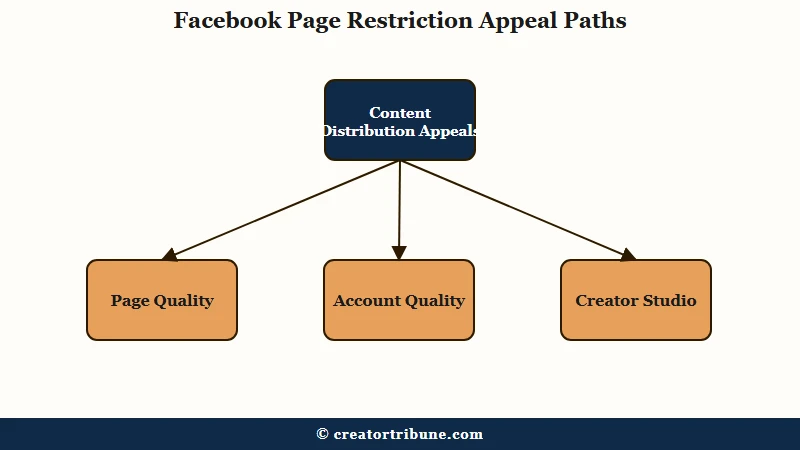
In my experience, the appeal itself is straightforward. The challenge is matching the right appeal to the right restriction. Here is the sequence I would walk through for each type.
Content Distribution Restriction Appeal
- Open Meta Business Suite and navigate to Page Quality.
- Locate the specific violation listed with its date and category.
- Click “Request Review” next to the flagged content or violation.
- Write a concise explanation of why the content does not violate the cited policy.
- Submit and screenshot the confirmation for your records.
- Wait 1 to 7 business days without submitting additional appeals.
Advertising Restriction Appeal
- Open Ads Manager and navigate to Account Quality.
- Review the specific policy violation cited in the restriction notice.
- Remove or edit any non-compliant ads before appealing.
- Click “Request Review” on the Account Quality page.
- Provide business verification documents if prompted (business license, utility bill, or incorporation certificate).
- Wait for review, which takes 1 to 14 business days depending on the violation.
Monetization Suspension Appeal
- Open Creator Studio and navigate to Monetization settings.
- Check which monetization feature is suspended (in-stream ads, Stars, Subscriptions).
- Review the policy violation listed under the suspension notice.
- Submit an appeal through the available “Request Review” link.
- If no appeal link is visible, contact Meta Business Support at facebook.com/business-support-home.
The appeal text matters. In my experience, a strong appeal follows a specific pattern.
Before: “My page was wrongly restricted. I never violated any rules. Please restore my page. I have been on Facebook for 3 years and this is unfair.”
After: “My page [name] was restricted on [date] citing [specific policy]. I believe this was applied in error because [specific reason with evidence]. The flagged content at [URL if known] was [explain context: educational, news reporting, licensed material, etc.]. I have reviewed the current Community Standards and confirm my remaining content is compliant.”
The first version gives the reviewer nothing to work with. The second version references the specific policy, provides context, and demonstrates awareness of the current rules.
The same appeal psychology applies across every major platform, and the TikTok ban appeal guide documents the identical pattern where specific, evidence-based appeals outperform generic complaints.
What to Do When a Facebook Page Appeal Gets No Response
When a standard Facebook page appeal produces no response after 14 days, Meta Business Support and the Ads support chat are the two escalation paths most likely to reach a human reviewer.
The standard form alone has a low response rate for severe restrictions.
What I would recommend understanding about the escalation timeline is that Meta’s support infrastructure is inconsistent. Some regions get access to live chat. Others only get form submissions. The availability of each path depends on your account type and spending history.
Here is how the escalation options compare.
| Support Method | Cost | Response Time | Reliability |
|---|---|---|---|
| Standard appeal form | Free | 1 to 30+ days | Low for severe restrictions |
| Meta Business Support chat | Free (requires Business Suite access) | 24 to 72 hours | Moderate, region-dependent |
| Ads support chat (requires ad spend) | $5+ minimum ad spend | 24 to 48 hours once escalated | High, may need multiple attempts |
| Professional recovery service | $500 to $5,000+ | Weeks to months | Varies widely |
The Ads support chat method works the same way it does for Instagram account recovery. Purchasing even a small Facebook ad unlocks access to the advertising support team, which can escalate page-level issues that the standard form cannot reach.
Creating a new page or a new personal account after a restriction is the worst mistake you can make. Facebook cross-references device fingerprints, IP addresses, email addresses, and phone numbers. A new account created from the same device gets flagged within days, and the original restriction escalates to a platform-wide ban.
The way I see it, professional recovery services at $500 to $5,000+ exist for a reason. The problem is severe enough to support an industry around it. For most creators, the self-service paths above should be exhausted first.
How to Recover a Restricted Facebook Page in 2 to 4 Weeks
A structured 2 to 4 week recovery plan that combines content cleanup, engagement rebuilding, and compliance documentation produces the best outcomes for restricted Facebook pages. Waiting passively for the restriction to lift is not a strategy.
What I would recommend is treating the restriction period as a rehabilitation window. The actions you take during the restriction directly influence whether Meta lifts it on schedule or extends it.
Week 1 (Days 1 to 7)
- Complete the diagnostic from the first section. Identify your exact restriction type and the specific policy violation cited.
- Remove or unpublish (do not delete) any content that could be flagged. Deletion removes your ability to reference the content in an appeal. Unpublishing preserves it while hiding it from the public.
- Enable two-factor authentication on every account connected to the page.
- Verify your business information is complete and accurate in Meta Business Suite.
- Submit your first appeal through the correct form for your restriction type.
Week 2 (Days 8 to 14)
- If the appeal was approved, begin posting 1 to 2 pieces of original content per day. Keep topics safe and policy-compliant.
- If the appeal received no response, escalate through Meta Business Support or the Ads support chat.
- Review all connected apps and remove any third-party tools that automate posting, following, or engagement.
- Audit your page for any remaining content that could trigger automated flags.
Week 3 to 4 (Days 15 to 28)
- Gradually increase posting frequency to 3 to 4 native posts per day.
- Focus on content types that generate engagement without risk: original video, text posts with questions, and carousel images.
- Avoid reposting content from other pages. Shared content with watermarks from other platforms (TikTok, Instagram) triggers reduced distribution.
- Monitor the Page Quality tab daily for any new flags.
The recovery timeline varies by restriction severity. Content distribution limits often lift within 7 to 14 days of the violation expiring. Advertising restrictions take 14 to 30 days. Full page restrictions with multiple strikes can take 30 days or longer.
If your page lost monetization during the restriction and you need to understand the separate eligibility requirements, the Facebook monetization denied guide covers the in-stream ads, Stars, and Subscriptions qualification paths in detail.
How to Prevent Future Facebook Page Restrictions
The most reliable prevention strategy is maintaining at least two page admins, enabling two-factor authentication, and staying below the automated trigger thresholds for posting frequency and engagement actions.
Most restricted pages could have avoided the outcome with one preventive measure taken before the first flag.
The way I see it, prevention on Facebook comes down to understanding what the automated system watches for. The triggers are specific and avoidable.
- Keep posting frequency below 5 posts per hour. Anything above that threshold triggers spam detection regardless of content quality.
- Enable two-factor authentication on every personal account connected to the page. Account compromise is the fastest path to restrictions because the attacker posts violating content on your behalf.
- Assign at least two page admins. If one account gets restricted, the second admin maintains access and can manage the page while the restriction is resolved.
- Use original content rather than reposting from other platforms. Watermarked content from TikTok or Instagram signals low-quality content to the algorithm and can trigger reduced distribution.
- Complete Meta’s business verification process. Verified businesses get access to better support channels and faster appeal processing.
- Space engagement actions (likes, comments, friend requests) at least 30 minutes apart. Rapid engagement patterns trigger the same spam flags as rapid posting.
What I would recommend above all else is checking the Page Quality tab once per week even when everything seems fine. Violations can appear silently without triggering an email notification, and catching a flag early before it accumulates into a restriction is far easier than appealing after the restriction is applied.
If your page reach has been declining without a formal restriction, the issue may be algorithmic rather than policy-based. The Facebook reach throttling diagnostic covers the separate problem of organic reach decline that affects pages with no active violations.
Frequently Asked Questions
How long does a Facebook page restriction last?
Duration depends on violation type and offense count. Spam first offenses last 24 hours. Hate speech starts at 3 to 7 days. Repeat violations escalate to 30-day suspensions. Copyright violations can result in page deletion after three offenses.
Can I create a new Facebook page if mine is restricted?
No. Facebook cross-references device fingerprints, IP addresses, email addresses, and phone numbers. A new page created from the same device gets flagged within days and the original restriction escalates to a platform-wide ban.
Where do I check if my Facebook page is restricted?
Open Meta Business Suite and navigate to the Page Quality tab. Any active violations, their dates, and the specific policy cited will appear there. For advertising restrictions, check Account Quality inside Ads Manager.
What is the difference between Facebook jail and a shadowban?
Facebook jail is an official restriction with clear notifications, specific timelines, and an appeal path. A shadowban is an informal reduction in reach with no notification, no timeline, and no direct appeal. Jail is a policy enforcement action. A shadowban is an algorithmic distribution decision.
Does paying for Facebook ads help with page restrictions?
Not directly. Purchasing ads does unlock access to the advertising support team, which can escalate page-level issues that the standard appeal form cannot reach. A minimum ad spend of $5 is enough to access this support channel.
How many strikes before Facebook permanently bans a page?
Facebook’s strike system issues warnings that accumulate. A single strike carries no penalties. Ten or more strikes within a rolling window trigger a 30-day suspension. Permanent bans are reserved for severe violations like hate speech on a third offense or repeated copyright infringement.